Introduction to Git and GitHub
What is Git?
Keeping track of file versions is hard.
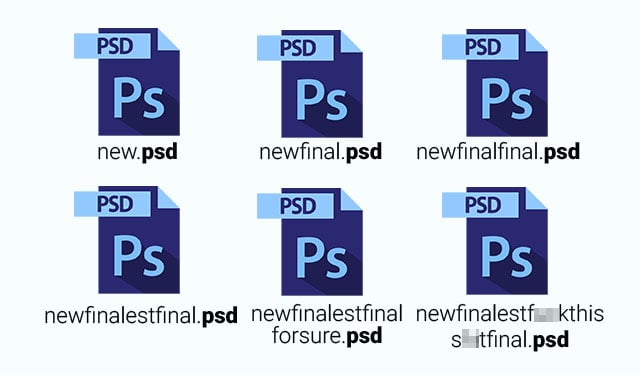
Reverting to Past Save Points (Commits)
Git allows us to make save points at any time. These save points are called “commits.” Once a save point is made, it’s permanent and allows us to go back to that save point at any time. From there, we can see what the code looked like at that point or even start building off that version.
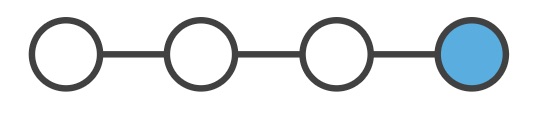
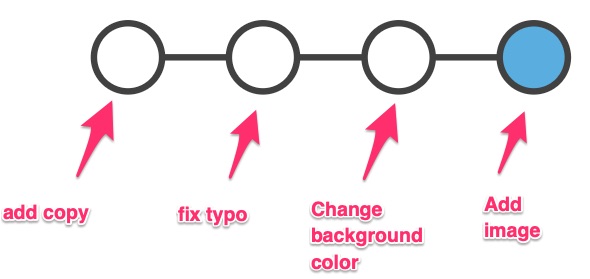
Keeping Track of What Each Save Point “Meant” (Commit Messages)
Every commit has a description (commit message), which allows us to describe what changes were made between the current and previous commit. This is usually a description of what features were added or what bugs were fixed.
Additionally, Git supports tagging, which allows us to mark a specific commit as a specific version of our code (e.g., “2.4.5”).
Non-Linear Workflow (Branches)
Git enables you to work using a non-linear workflow. This means that you can have multiple versions of a project or “branches” with different save points, or “commits,” simultaneously within the same folder and easily toggle between them. You can split new branches off a project when you’re looking to experiment or implement a new feature, and you can merge those branches back into the main (formerly known as “master”) branch when you’re ready to incorporate them into a project.

Git Versus GitHub
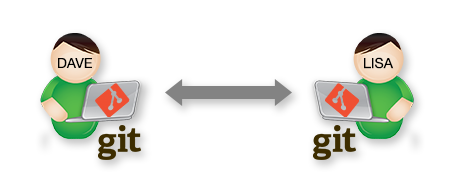
Git is a distributed version control system. It is a technology.
![]()
GitHub is a social coding platform where Git repositories are stored and where people can collaborate on projects. GitHub is great both for collaboration within your organization, but also provides an excellent model for open source collaboration across organizations or with the public.
![]()
On GitHub you can find Git repositories.
![]()
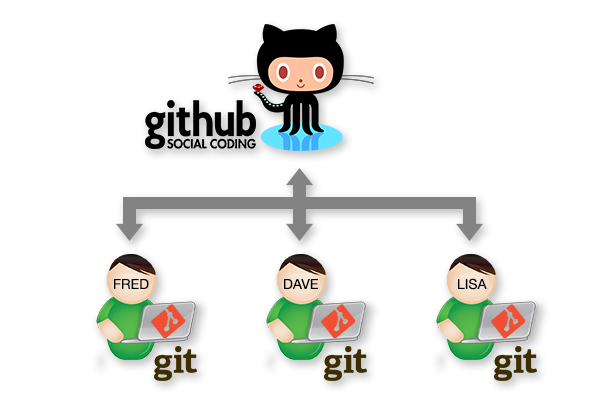
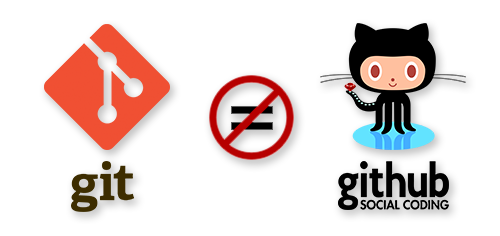
Learn More: https://jahya.net/blog/git-vs-github/
(Some of) GitHub’s Features
The README.md File
GitHub looks for a “README” file and renders it as you’re navigating through the file structure. This is a great way to guide people through your code.
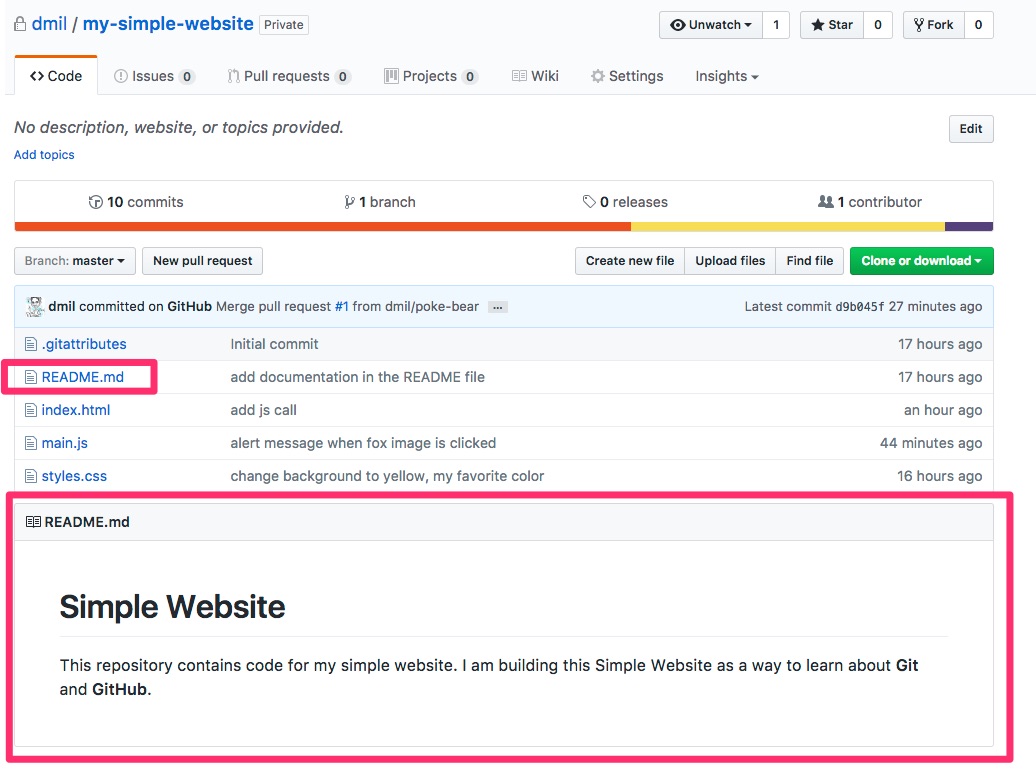
README files are often given the .md extension, meaning they’re written in a language called Markdown that allows for nicer formatting. You can check out this Markdown cheat sheet if you want to see how formatting works, but you can also save a README file as plain text. GitHub will also detect .txt files, or you can just write plain text inside your .md file.
Commit Log
Vocabulary:
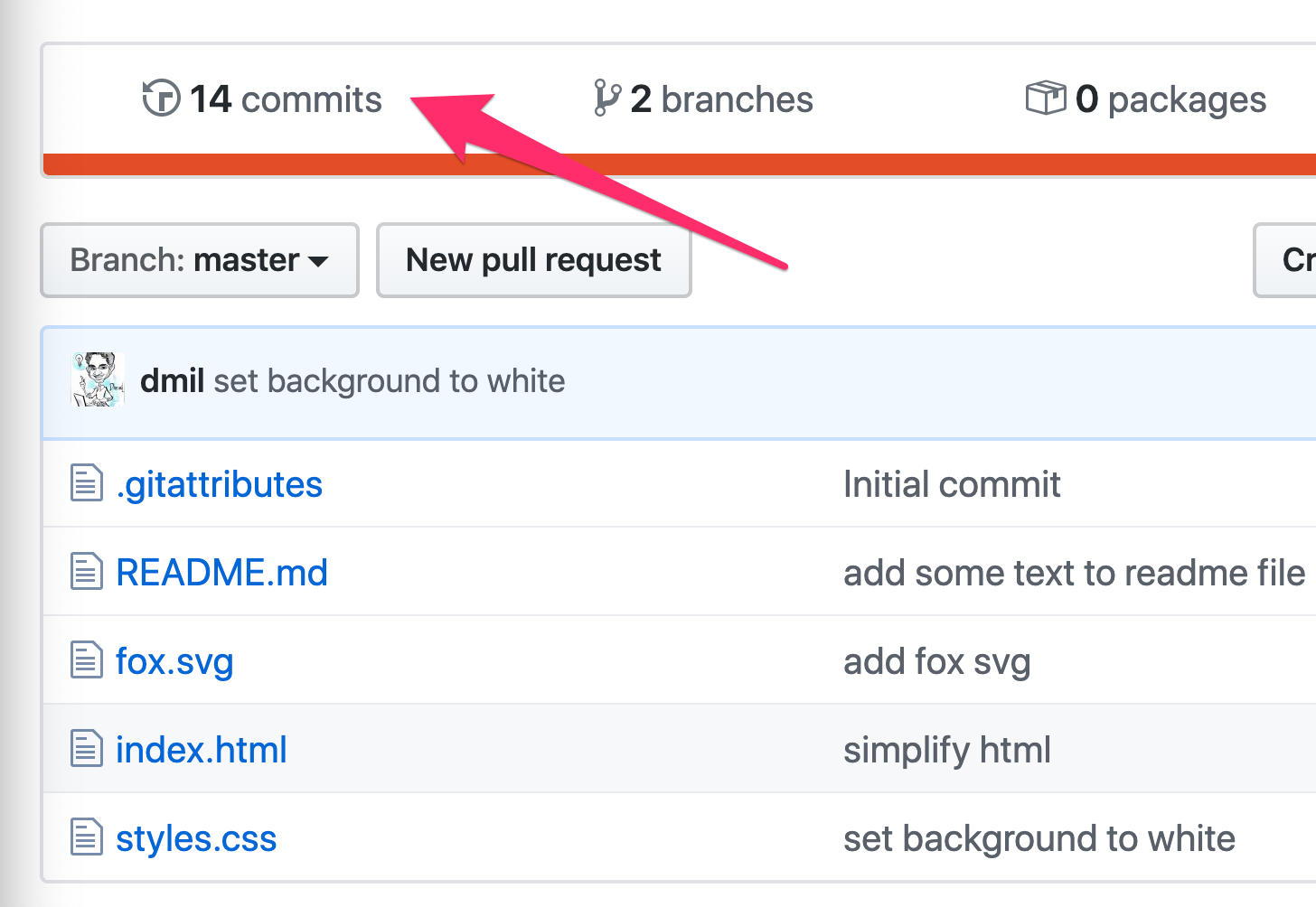
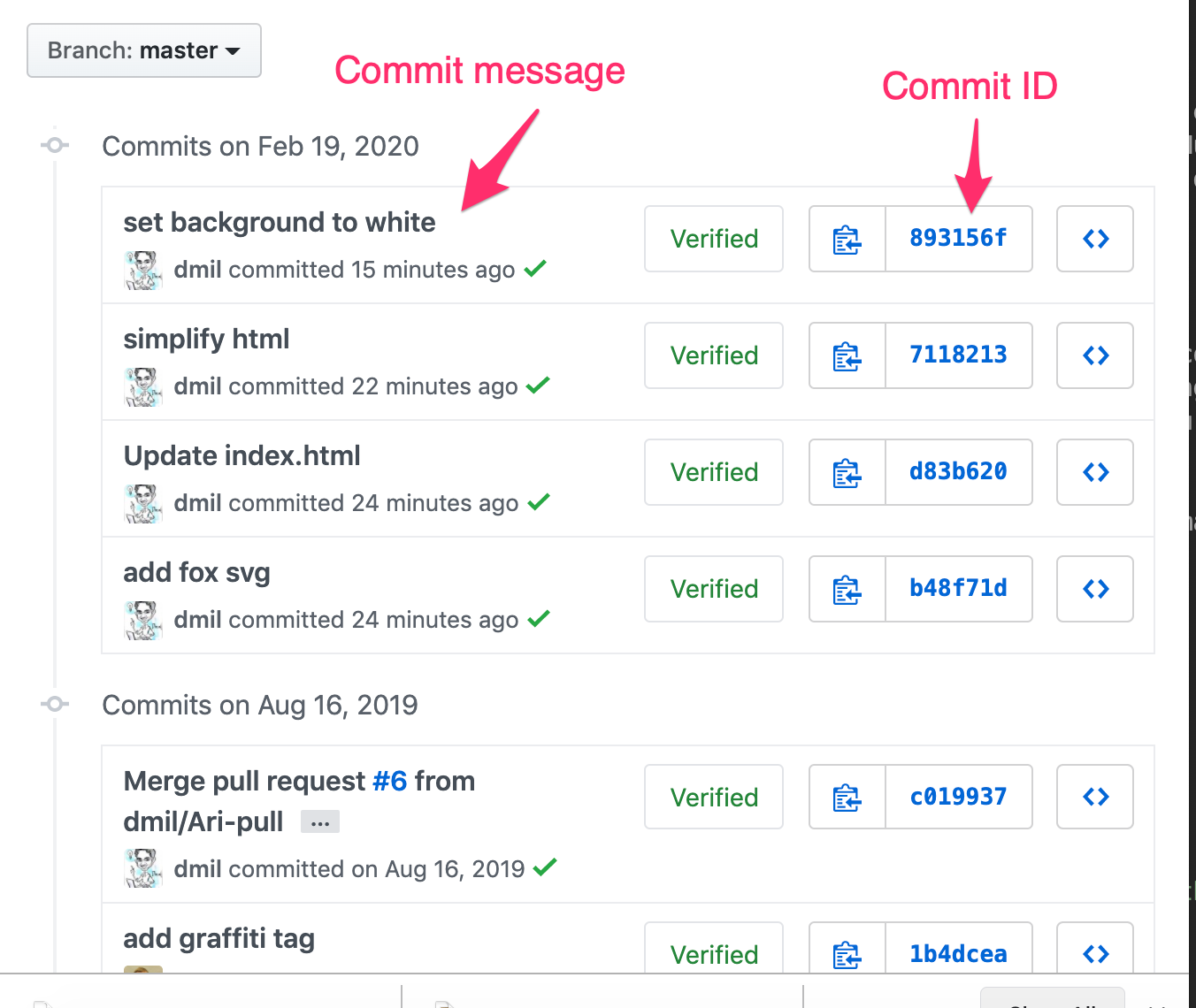
- Commit: The basic unit of a Git repository is a commit. It is a set of changes to a file. A commit usually comes with a commit ID as well as a commit message that describes the change.
- Commit Log (aka Git History): All of the commits (previous changes) to all of the files in your repository
History, Raw, and Blame for Any File
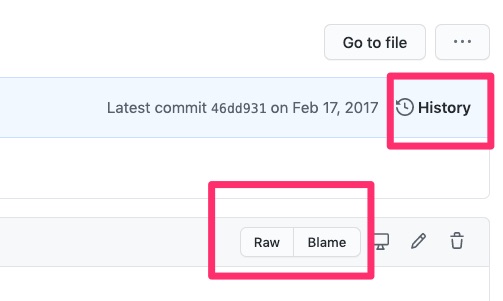
- Raw: Actual contents of the file without any formatting applied.
- History: Every change ever made to that file within this branch.
- Blame: Provenance of each line currently in the file you’re looking at in the branch you’re looking at.
Proposing Edits
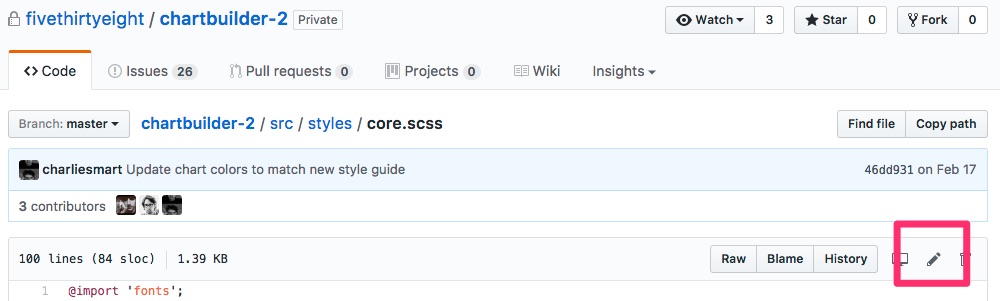
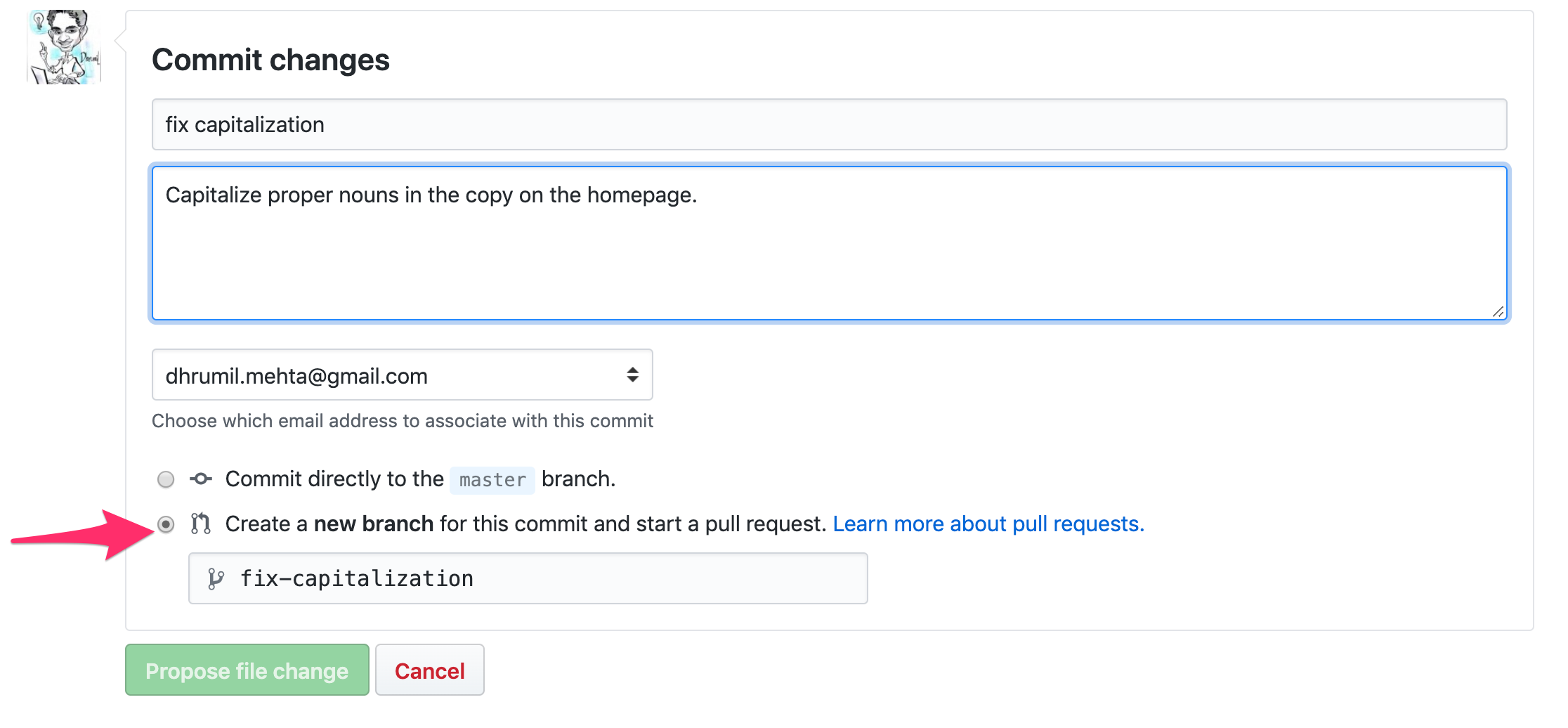
You can edit a file in GitHub in a new branch, thus proposing a change without actually making the change in the main branch. Just make sure to leave a meaningful description of the change you made in the commit message.
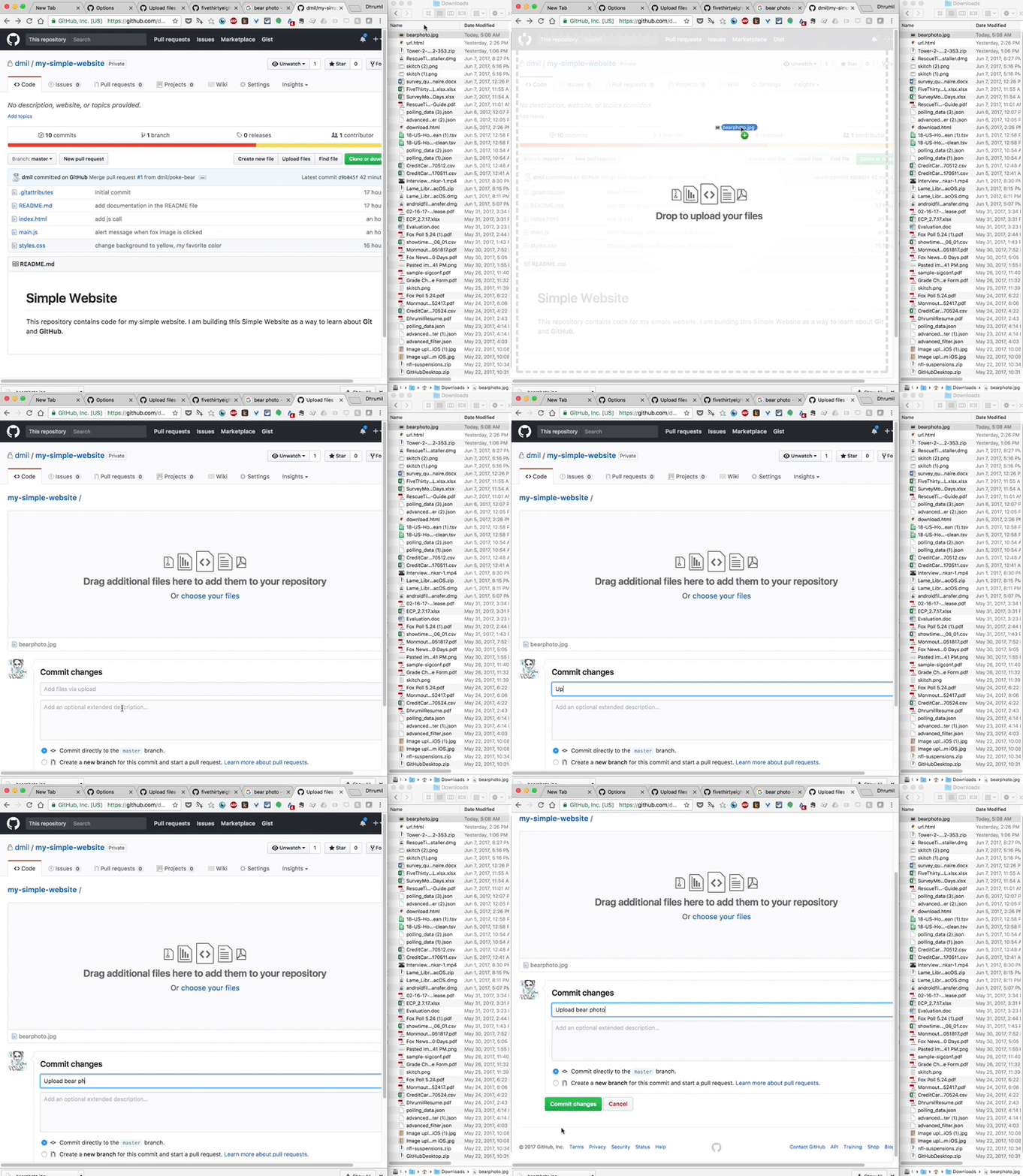
Drag and Drop
Collaboration
Collaborators can push to the repository without asking your permission; they have full read and write access.
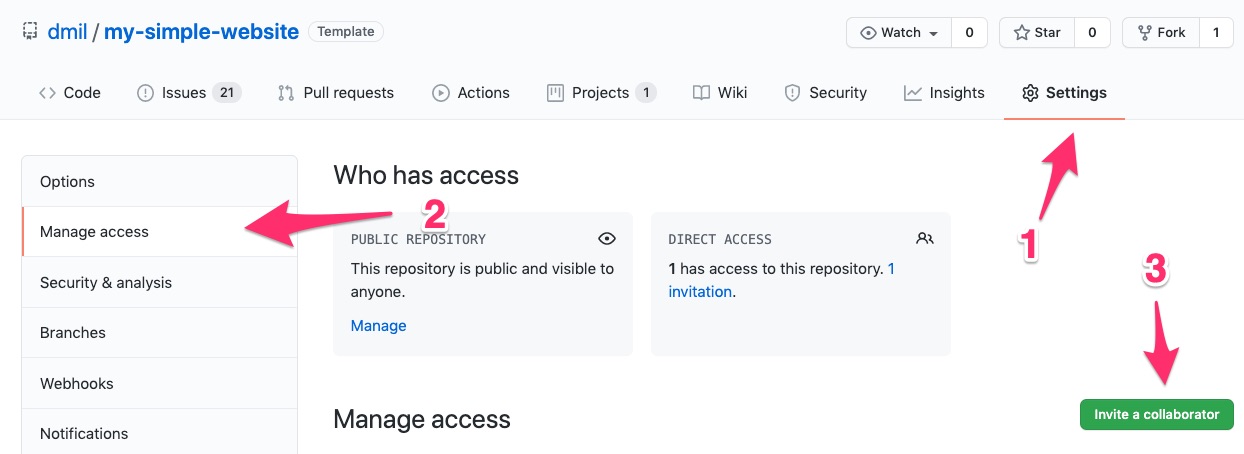
If I wasn’t a collaborator, I could still work with you on an open source project through a process called forking, where I can make a copy of your repository in my GitHub account, make changes, and request that you merge them back into your project. We will discuss forking more in-depth later.
Serving Up Websites!
GitHub is also great for serving up static websites. GitHub is only storing the code. Luckily, if your code happens to be a website, GitHub can also host it for you through a feature called “GitHub Pages.”
Simply go to the “Settings” menu, scroll down to “GitHub Pages,” and select “main branch.”
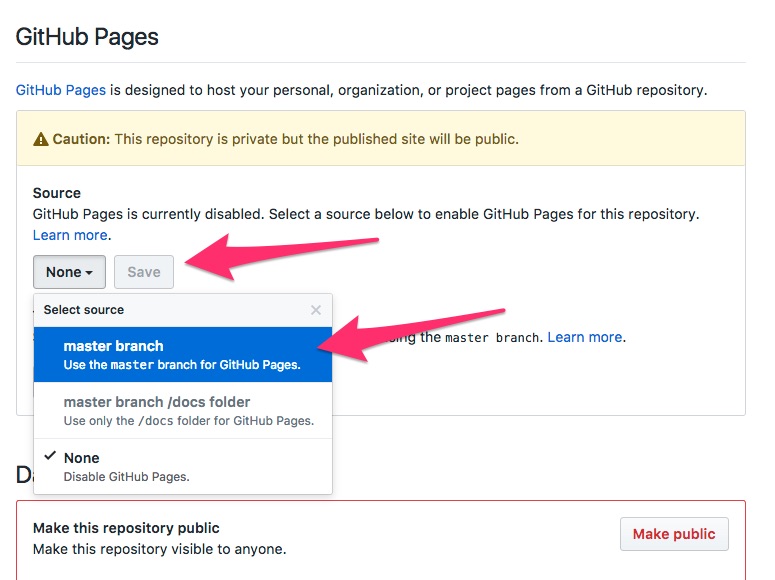
Whatever is in your main branch on GitHub should now appear at: